Keeping guest networks separate
Give visitors Internet access while keeping business devices, printers and network controls behind tested guest-network restrictions.
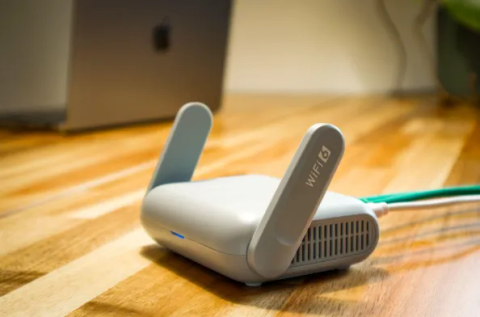
A visitor can need Internet access without needing access to your printer, file server or camera system. Guest Wi-Fi should support that distinction, even when both networks use the same Internet connection.
A second network name is only part of the setup. The rules in the router, firewall, switches and access points determine what a guest device can reach.
Set the boundary before choosing equipment
Write down what visitors need: web access, video calls or a presentation system, for example. The default should be Internet access with internal business resources blocked.
The Cyber Centre’s guest Wi-Fi guidance recommends separating guests from the primary network, using a different password and keeping network equipment updated. Those controls let you change visitor access without reconnecting every staff device.
If guests need to print or present, design an explicit method for that task. Don’t enable access to the whole office network to make one device work. A staff member receiving and printing a document may be sufficient.
Check the settings behind the network name
Business equipment can map a Wi-Fi name, or SSID, to a separate virtual network called a VLAN. Firewall rules control communication between that network and the rest of the office.
The Cyber Centre’s Wi-Fi security guidance covers VLANs, network zones and client isolation. A VLAN still needs rules that block traffic between networks; some default configurations allow it.
Ask your network administrator to document:
- Which wired and wireless devices belong on each network.
- Which internal destinations guest traffic is blocked from reaching.
- How guests are prevented from opening equipment administration pages.
- Whether guest devices can contact one another.
- Any exceptions you’ve allowed for printing, casting or anything else.
Client isolation limits communication between visitors. It serves a different purpose from blocking guests’ access to business systems. Both need checking across the equipment you use.
Place personal and connected devices deliberately
A personal phone that only needs the Internet can use guest Wi-Fi. A phone used for work email or an internal application also needs the access and device rules in your BYOD policy. Putting it on the guest network doesn’t change that.
Cameras, displays and meeting-room equipment may need connections to controllers or recording systems. Put them on their own device network with only the permissions they need. Don’t assume the guest network will support every local function, or that those functions justify unrestricted access.
Contractors needing internal access should get it only for the agreed work, and only for as long as that work runs. Keep that separate from ordinary visitor Internet access.
Test separation from a guest device
Have your administrator run checks from the guest network. Confirm that Internet access works and that internal storage, printers, cameras and management pages are inaccessible. Test IPv6 as well as IPv4 if both are in use.
Check guest isolation with two test devices, on each access point visitors might connect to. A setting that works on one radio may not work throughout the office. Verify intended exceptions without opening broader access.
Repeat these checks after replacing or reconfiguring network equipment. Record the result and keep a configuration backup.
Keep guest access usable and maintained
Use supported Wi-Fi encryption and equipment, change default administrator credentials and maintain firmware updates. Choose an access-expiry or password-change process that fits visitor turnover.
If guest traffic affects calls or other business work, review capacity and bandwidth limits. A separate Internet circuit may be useful in some sites, but isolation doesn’t automatically require one.
Assign someone to handle guest connection problems and someone to maintain the network. Staff need a clear way to help a visitor without handing out the business Wi-Fi password.


