Setting up two monitors for everyday work
Check display connections, Windows settings, screen placement and sharing behaviour before making a two-monitor desk your regular workspace.
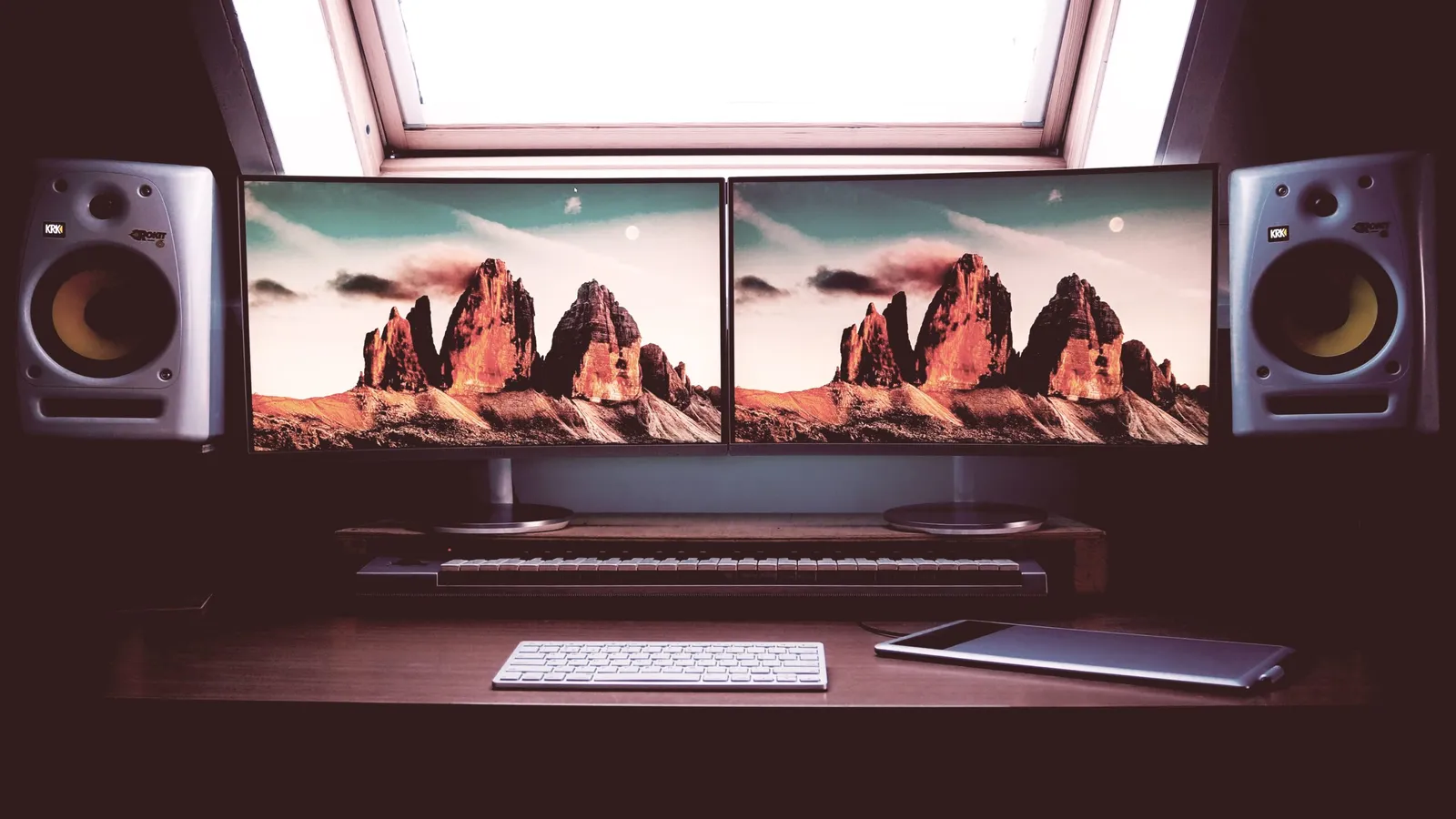
A second monitor can help when you need a reference beside the document you’re editing. It can also make work awkward if text is difficult to read or you keep turning to the wrong screen.
Set up the desk around the tasks you do. Test a normal work session before deciding whether the arrangement helps.
Confirm the computer can drive both displays
Check the computer, dock, cables and monitors together. Match the supported number of displays, resolution and connections before buying adapters. A connector that fits doesn’t mean the dock can run both screens at the resolution you need.
Use the specifications and drivers from the equipment supplier. If a screen flickers or disappears after waking, record which connection and configuration caused it.
Matching monitors can simplify the arrangement, but different sizes can still work. The important test is whether text and movement between screens remain comfortable.
Arrange the displays in Windows
Microsoft’s multiple-monitor instructions explain identifying displays, arranging their positions and choosing how the desktop is shown.
Use Extend when you need different windows on each screen. Use Duplicate when both displays should show the same content. Arrange the numbered displays to match their physical positions, then move the pointer across the shared edge to check the result.
Set scaling so normal text is readable on each display. Keep the operating system’s recommended resolution as a starting point.
Place the screens around your work
The CCOHS monitor-positioning guide distinguishes equal use from a main-and-secondary arrangement. If one screen does most of the work, place it directly ahead. If both are used equally, arrange them together in front of you.
Adjust height, distance and angle for comfortable viewing, including any corrective lenses. Reduce glare and avoid putting frequently read content where you must keep twisting.
Leave space for the keyboard and mouse. Secure cables without pulling on connectors or restricting a sit-stand desk.
Give each screen a useful job
Try one task: compare a source record with an entry form, keep meeting notes beside a reference, or edit a document while reviewing comments.
Keep notifications from taking over the second screen. More visible applications can create more interruptions.
A few Windows 11 settings help. Under Settings > Personalization > Taskbar > Taskbar behaviours, set “When using multiple displays, show my taskbar apps on” to the taskbar where the window is open. Windows key plus the left or right arrow snaps a window to half of the screen, and adding Shift moves it to the other monitor.
Practise moving windows and finding the active application before a time-sensitive meeting.
Check sharing and docking behaviour
Share a harmless test window in your meeting tool. Confirm what participants can see, especially when you switch windows or move the pointer to another screen.
Test unplugging and reconnecting the dock, waking the computer and using the laptop alone. Check where windows return and whether calls still use the intended microphone and camera.
Keep the arrangement that supports the work and feels comfortable. If discomfort persists, ask for a workstation assessment.


