Planning laptop battery use for a workday
Test laptop runtime with the work you do on battery, use supported power settings and battery diagnostics, and keep security and sync intact.
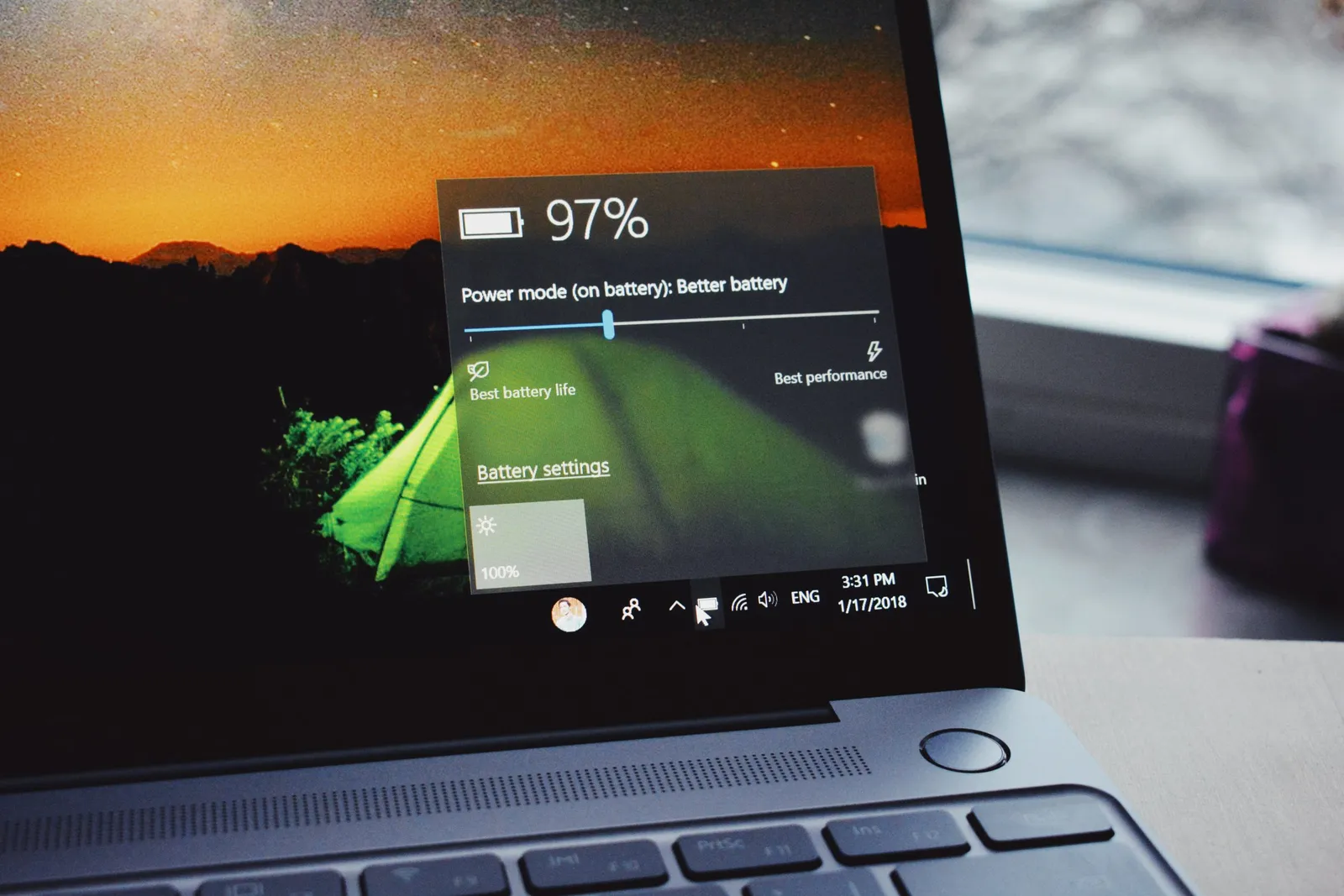
A laptop that lasts through email may run out of power much sooner during video calls or a demanding application. Plan around the work you’ll do away from an outlet. A battery percentage or advertised runtime won’t tell you that.
If battery life has changed, investigate both power consumption and battery condition.
Measure a representative session
Start with a normal charge and use the applications, brightness and network connection the work requires. Note the starting level, elapsed time and remaining charge.
Include video calls, presentations and external devices when they’re part of the day. Save your work and leave enough charge to finish safely; the test doesn’t require repeatedly draining the battery completely.
Compare similar sessions before and after a settings change. One unusually quiet afternoon won’t tell you whether the laptop will last a full client visit.
Adjust supported power settings
Microsoft’s battery-saving guidance describes display, energy-saving and power settings available in Windows.
Use the options supported by your installed version and management policy. Lower brightness to a comfortable, readable level and set screen-off and sleep times that suit how you work.
Check the effect on notifications, synchronization and performance. Make sure essential work has synced to the business’s shared storage before travelling or shutting down.
Review application demand
Close applications and browser tabs you don’t need for the task. Check which apps consume power using the operating system’s supported reporting.
Browser sleeping-tab features may help with idle pages, but test applications that need to remain active. A paused page can affect a dashboard or ongoing workflow.
Don’t stop security tools, update services or management agents to extend a charge. Discuss abnormal consumption with IT so the cause can be assessed without removing protection.
Check battery condition separately
Microsoft’s battery-care guidance explains battery ageing. Running powercfg /batteryreport in a command prompt produces a report showing the battery’s design capacity beside its current full-charge capacity. A manufacturer diagnostic may provide additional information for the exact model.
Distinguish charge level from available capacity. A battery at 100 percent can store less energy than it did when new.
Use calibration only if the manufacturer recommends it for a specific diagnostic problem. It doesn’t restore physically lost battery capacity.
Keep charging and servicing practical
Follow the manufacturer’s operating and storage temperature guidance. Keep vents clear and avoid leaving the laptop in a hot or freezing vehicle.
Bring a charger made for the device. An adapter with the right USB-C plug may still not supply enough power for the laptop.
If the battery is swollen, damaged or overheating, stop using it and follow the manufacturer’s service instructions. Don’t press it back into shape or attempt an improvised repair.
Choose the next action from the evidence
A settings adjustment may be sufficient when demand is the issue. A worn battery may need supported replacement, while an ageing unsupported computer may need a broader replacement plan.
Use the computer lifecycle guide to make that decision with support, reliability and the required workload included.


