Suspicious apps and links on work phones
Spot suspicious apps, links and permission requests on a work phone, and know what to do if the phone is lost or may be compromised.
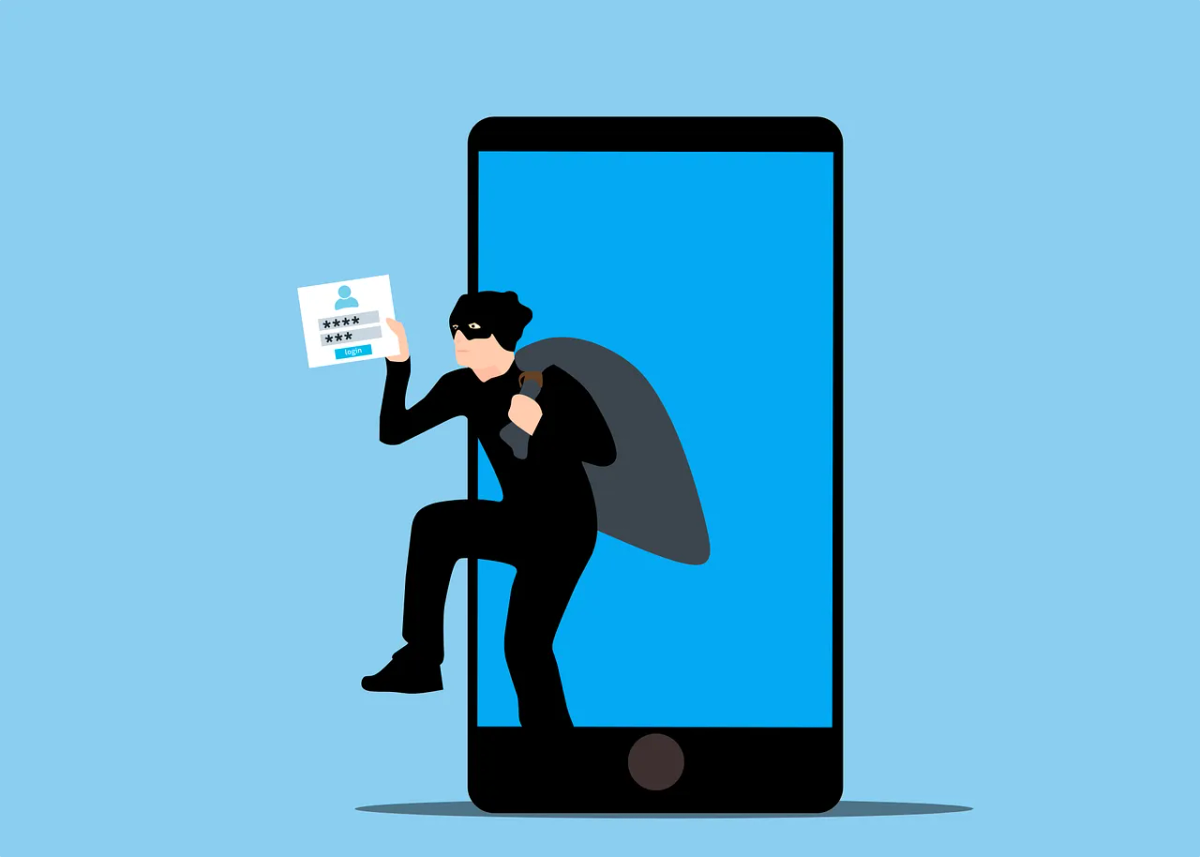
A phone used for work may hold email, files and the authenticator app even when it belongs to the employee. A suspicious app or message can affect business accounts without first reaching an office computer.
Know which devices and applications your organization permits. The mobile-device security guidance from NIST covers enterprise management across the device lifecycle. The right controls depend on the platform and on who owns the phone.
Pause before following an unexpected prompt
A message about a delivery, expired account or urgent security update may ask you to sign in, install an app or approve a permission. Open the known business application or use a verified contact route to check the request.
Don’t assume a text is authentic because it appears beside earlier messages from the same name. Report requests for passwords, MFA codes or remote access to IT.
If you already entered details or approved a prompt, say so when reporting. That matters more than how convincing the message looked.
Install work apps the way IT has set up
Install work apps from the company portal or the official app store. Confirm the publisher and requested function. Reviews and familiar branding don’t guarantee an app is safe.
Treat requests to bypass warnings, install a management profile or grant broad device control as matters for IT. Don’t enrol a personal phone into an unfamiliar management system to open a document.
On managed Android devices, Google Play Protect’s enterprise guidance describes controls IT can enforce and alerts about potentially harmful apps. Protection and visibility differ by platform and management configuration.
Review permissions in context
Ask whether the app needs contacts, camera, microphone, location or other requested access for the job it does. Check special privileges, accessibility access and profiles as well as ordinary permissions.
A permission screen doesn’t describe every data flow. The app may also receive information entered into it or retrieved from an account. Keep business information in the apps your business uses for it.
Protect the device and its sign-in role
Use a screen lock, install updates and keep the phone on a supported operating system version. If it holds your authenticator app, make sure you have another way to sign in before it’s ever lost.
Use the VPN or remote-access tool IT provides. A VPN protects the connection. It won’t make a malicious app or website safe.
Report loss or suspected compromise promptly
Use a known route to IT from another device if needed. Provide the device, time, unusual behaviour and actions taken. Don’t install several cleanup tools or reset the phone before the responder assesses it.
For personal devices, remote actions need a clear, lawful scope. Canada’s privacy commissioners’ BYOD guidance addresses the privacy and ownership issues. A work policy doesn’t automatically justify wiping all personal content.
IT should assess account sessions, business-data exposure and available device controls together. A remote wipe depends on how the phone was set up and whether it’s online. It may not remove every copy or sign-in, so check accounts and files separately.


