Checking a Windows 11 upgrade before rollout
Test applications, recovery, accessories and staff workflows on a representative Windows 11 pilot before starting the wider rollout.
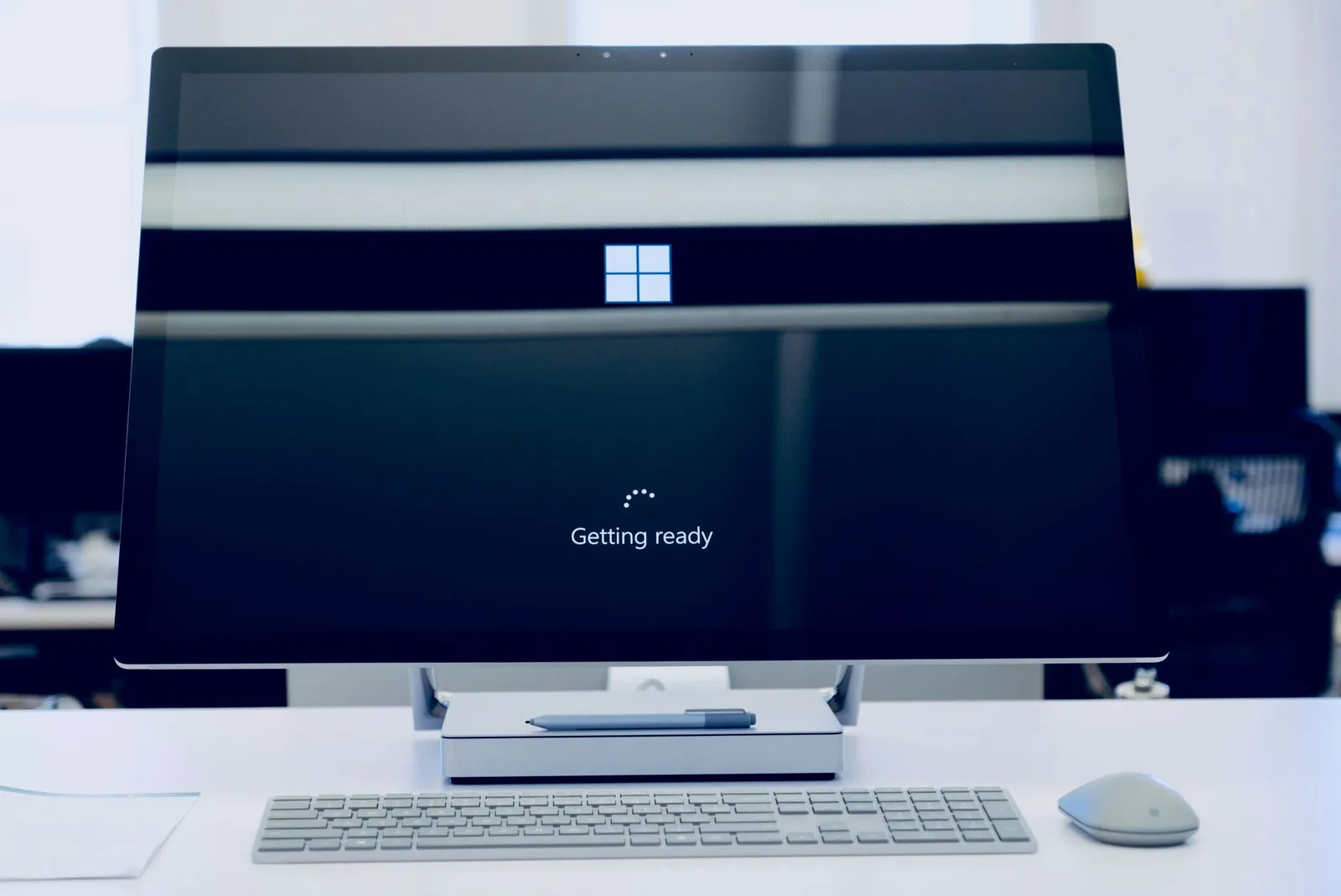
A Windows upgrade is ready when the employee can complete their work on a supported setup. A clean install won’t tell you whether applications, accessories, security controls and recovery all work, so test each one.
Standard support for Windows 10 version 22H2 ended on October 14, 2025. This article was first published before that deadline and has been revised since. Start with the Windows migration planning guide if you still need to identify editions and support arrangements.
Choose the pilot devices deliberately
Include the hardware models and job roles that represent the rollout. A finance workstation, a shared reception computer and a laptop used away from the office may have different dependencies.
Check Microsoft’s Windows 11 requirements and the manufacturer’s support for the exact model. Confirm the target Windows edition and version with IT.
Hardware eligibility is one check. Minimum installation requirements don’t show whether a device has enough capacity for the applications and multitasking staff need.
Prepare recovery before changing the system
Identify local files, application settings and information that hasn’t synchronized. Arrange a tested backup and check that IT can retrieve the device’s BitLocker recovery key.
Define how the device will be restored or replaced if the pilot fails. Confirm the available recovery method, required media and limits before beginning; don’t assume a rollback option will remain available indefinitely.
Schedule the work with the employee and provide a way to continue essential tasks. Keep a contact route that doesn’t depend on the computer being upgraded.
Test complete business workflows
Ask staff to complete representative tasks using sample records. Include opening an existing document, submitting a form, printing, scanning, joining a meeting and accessing a required business system.
Test docks, displays, cameras, audio equipment and specialist peripherals. Check VPN or other remote access, including reconnection after sleep.
Record failures and the exact applications, versions and accessories involved. An application can open without errors and still break an integration or produce the wrong output.
Verify management and staff access
Have IT confirm device enrolment, updates, endpoint protection, encryption and recovery-key storage. Check that the correct employee can sign in and that the agreed privilege restrictions still apply.
Test accessibility settings and the employee’s preferred text size. Provide a brief orientation for changes that affect their tasks. Don’t assume a newer interface or AI feature will improve their performance.
Make a decision for exceptions
Some devices may need a vendor-supported replacement or an application change before they can move. Document the blocker, owner and next decision date.
Commercial Windows 10 ESU provides specified security updates for eligible, enrolled devices. It doesn’t restore full product support or guarantee application compatibility. Verify eligibility and confirm that devices are receiving the updates before relying on it as a temporary bridge.
Expand the rollout from pilot results
Keep the pilot results and unresolved issues beside the deployment plan. Expand in groups that can be supported, with acceptance checks repeated after each change.
Close the work only after staff confirm their main tasks and IT records the supported device state. Include secure handling of any equipment replaced during the rollout.


