Checking a suspicious reply in an email thread
Verify unexpected links, files and payment changes inside familiar email conversations, and report suspected thread hijacking through a trusted route.
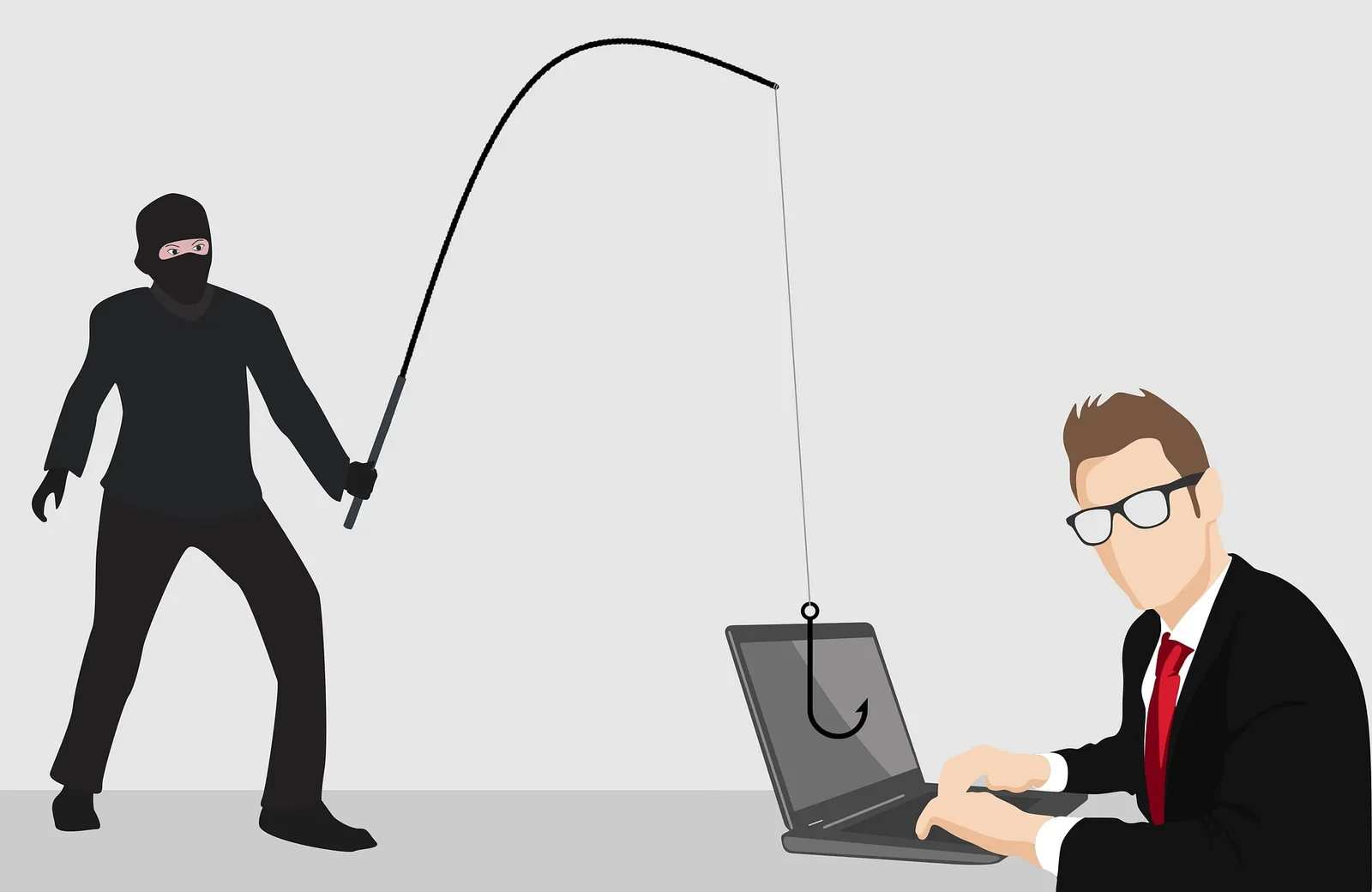
An email reply can look credible because it contains a familiar subject and earlier messages. A request for a new document, login or payment may appear to be the next step in work you’ve already discussed.
Check the new action on its own. Earlier messages in the thread don’t tell you who sent the latest one.
Understand how a thread can be misused
The Cyber Centre’s social engineering guidance describes thread hijacking: an attacker gains access to an email account and joins an existing conversation.
Someone with mailbox access can use the real discussion to write a convincing reply. A message can also reproduce stolen conversation text while being sent from a different address.
Checking the sender address helps identify some imitations. It won’t reveal every message sent from a compromised legitimate mailbox.
Pause at a changed request
Treat a new sign-in link, unexpected attachment, altered bank details or instruction to install software as a reason to verify the action.
Ask whether the request fits the agreed process. A file you weren’t expecting can arrive from a person you know, and a changed supplier account may appear in a genuine-looking invoice conversation.
Don’t enable macros, disable protections or use supplied credentials to open an unexpected document.
Confirm through an independent channel
Use a known number or established communication route to ask the apparent sender what they intended. Avoid relying on contact details introduced in the suspicious reply.
For shared documents, open the business’s usual application or workspace directly and look for the expected record. Don’t sign in through a link solely because the message includes earlier correspondence.
Keep the existing supplier-payment verification process for payment changes, including any second approval it requires.
Report the message without spreading it
Use the business’s reporting button or your usual IT support contact. Give responders the message and what you did, including any opened file, sign-in or payment.
Don’t forward a dangerous link around the team to demonstrate the problem. Responders can warn the team once they’ve assessed it.
If you entered credentials or ran a file, report that promptly from a trusted route and follow containment instructions. Deleting the email alone won’t resolve account or device exposure.
Address the compromised account
Where a business mailbox is affected, have your IT provider or incident responders review sessions, forwarding rules, recovery methods and application access. Follow the mailbox recovery guide for that scope.
Use supported strong sign-in controls and keep devices updated. Multi-factor authentication reduces risk, but methods and session protection differ. A challenge triggered only by an unfamiliar address isn’t a guarantee against compromise.
Include familiar-thread examples in training so staff practise the verification route before a real request arrives.