Checking QR codes before you sign in or pay
Treat QR codes as links, verify account and payment requests independently and report suspicious scans, credentials or installations to your IT contact.
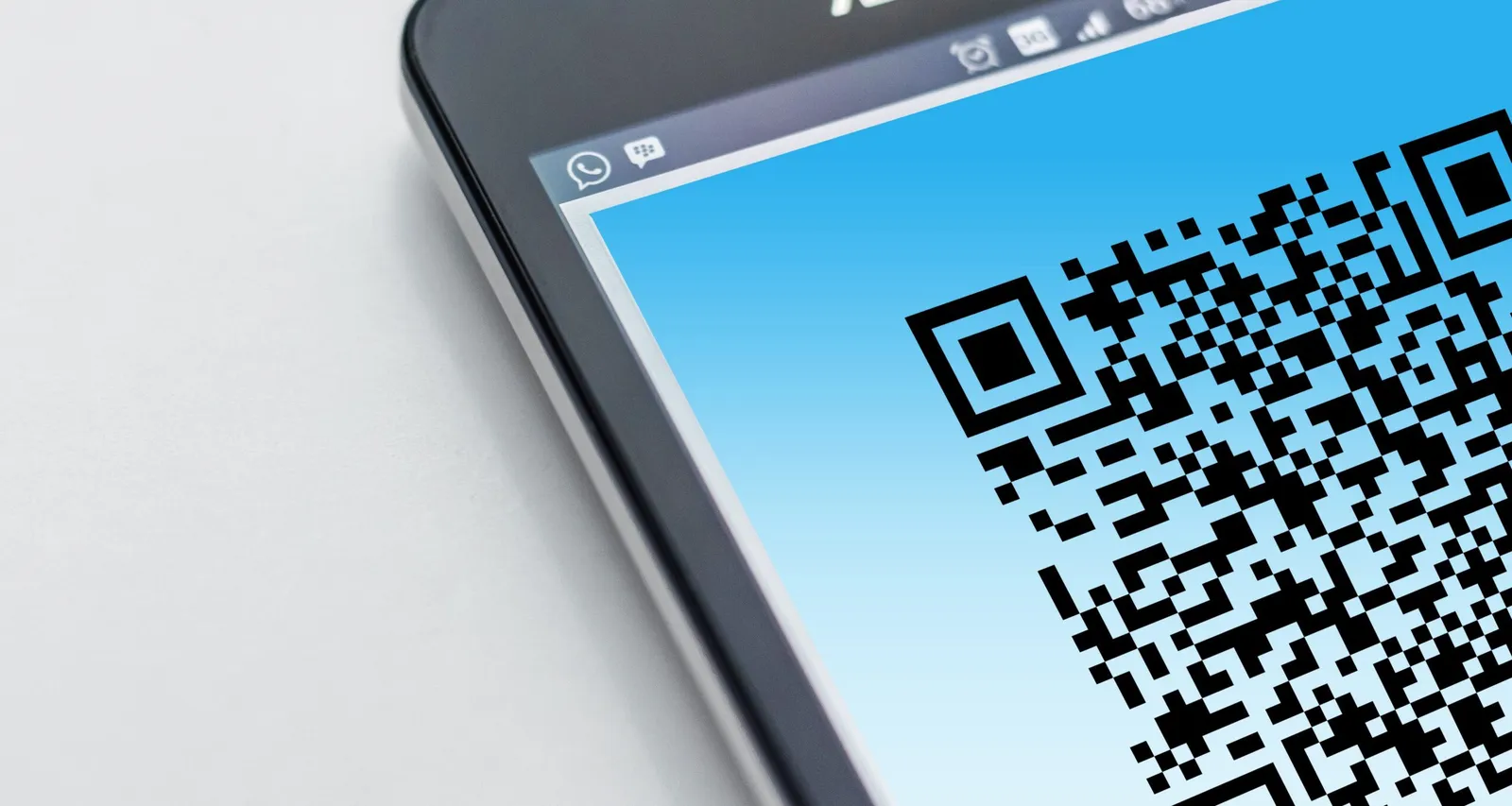
A QR code can open a menu, a payment page or a work document. It can also open a fake sign-in page. The square image doesn’t tell you who controls the destination.
Treat an unexpected code with the same care as an unexpected link, especially when it asks you to sign in, register MFA or send money.
Check the request before scanning
The Canadian Anti-Fraud Centre’s phishing guidance includes messages asking recipients to scan a QR code. A code in an invoice, attachment or account-warning email can be part of an impersonation attempt.
Ask whether you expected the request and whether it fits the normal process. For an account warning, open the service yourself from its app or a saved bookmark. For new payment instructions, verify them with a contact from your existing records.
A code can arrive in a real colleague’s message and still be unsafe. Their account or the document they forwarded may be compromised.
Inspect the destination and the physical code
Where your camera or scanner offers a preview, read the destination before opening it. Don’t assume every app pauses for confirmation. An unfamiliar short link or redirect gives you less information about the final site.
Check for stickers placed over a printed code on a poster or payment point. If you’re unsure, use the organization’s official app, website or staff contact to complete the task.
A fake page can still show a familiar logo, use HTTPS or look like Microsoft. If it asks for a password, code or payment you weren’t expecting, stop and use the normal route to the service.
Account for the move to another device
Scanning a code displayed on your work computer often moves the next action to a phone. That phone may have different management, browser filtering and reporting controls. It may also be a personal device.
Some email-security products inspect QR codes and some don’t. Ask IT what your setup covers without assuming that an image bypasses every filter. Staff verification remains useful when a message reaches the inbox.
Keep phone software supported and use the work apps and sign-in methods IT has set up. A personal phone should follow the organization’s BYOD rules when used to access business information.
Distinguish security methods correctly
Use phishing-resistant authentication where the service supports it. The Cyber Centre’s adversary-in-the-middle guidance identifies FIDO2 security keys and passkeys among these methods.
Number matching can reduce unwanted approval prompts, but it doesn’t make a conventional push approval phishing-resistant. An attacker can still relay a sign-in through a fake page.
Some legitimate sign-ins use a QR code. For example, FIDO cross-device authentication can use a phone’s passkey to sign in on another device. Start that flow from the real service yourself. Don’t follow an unsolicited instruction to scan and approve something you didn’t initiate.
Report what happened after the scan
If someone opened a page, close it and report the source and destination. Tell IT whether anything downloaded or whether a permission was granted. Don’t reopen the page to gather more evidence.
If they entered credentials or approved a sign-in, contact IT immediately. Use a trusted device for recovery. IT may need to revoke sessions, check registered sign-in methods and inspect connected apps in addition to changing the password.
If software was installed, stop using the device for work until IT assesses it. If payment information or money was sent, contact the financial institution promptly and report suspected fraud to local police and the Canadian Anti-Fraud Centre.
Include QR examples in staff training and show how to check an account warning by opening the service directly. Staff need a working alternative when they decide not to scan.